I’m going to be honest, this is not an exciting post. This is one of those “writing it down so I never have to remember how I did this” posts. But hopefully if anyone else stumbles upon this post while struggling to set up Conga Sign in Salesforce NPSP, this might save your day (or your sanity).
Here are the steps to configure Conga Sign templates for NPSP, using a button on the Funding Request Object. In this example we will create a Grant Agreement for our funder, Paws for Change, and a grantee, Boise Animal Rescue. The agreement includes text, date, and currency merge fields, data tables from related Disbursements and Requirements, and appends a “Budget” attachment, if one exists.
This post assumes you already have Conga Sign paid for, Apps are installed, licenses provisioned and the basic setup is generally functioning. Ok, Let’s get started.
Step One: Create a Conga Template Record
- Navigate to the Conga Composer App and click the Conga Templates object.
- Click New
- Enter a clear Name, preferably with a consistent naming convention
- Template Group can be left blank
- Template Type = Document
- Key can be left blank
- Enter a short description
- Save
- Navigate to the files related list and upload a docx file with your grant agreement.
- At this point, your agreement will have placeholder fields for all Merge fields. This is ok, we will return to this document once the merge fields have been generated. For example, your first draft of your agreement might look like this:
Grant Agreement
This Grant Agreement is entered into between Paws for Change (“Grantor”) and “APPLYING_ORGANIZATION_NAME” (“Grantee”) for Grant Number: “Funding_Request_Number”
1. Project Details The Grant shall be used for the following purpose(s):
Organization Name: “APPLYING_ORGANIZATION_NAME”
Country: “Country”
Total Grant Amount: “AWARDED_AMOUNT”
….
Step Two: Create Queries for Child Objects
Any fields you want to include in the generated document that are not on the primary object must be explicitly queried. In this example, I need fields from the Funding Request as well as fields from the related Disbursement Object and Requirement Object. Additionally, we want to check if the Funding Request has an attached budget file. The fields from the triggering object will be available by default, but to get data from related objects, we have to create Conga Queries.
- Navigate to the Conga Queries object and click “New”
- Enter a clear Name, preferably with a consistent naming convention
- Enter a short description
- Enter your SOQL statement
- Save
For the Disbursement object we can use the following:
SELECT

outfunds__Amount__c,

outfunds__Scheduled_Date__c

FROM outfunds__Disbursement__c

WHERE outfunds__Funding_Request__c = '{pv0}'

ORDER BY outfunds__Scheduled_Date__c ASC
Note: {pv0} is a variable we will use in a later step to pass the Funding Request ID from the action button parameters to the query.
Repeat the steps above to create a query the Requirement object for the Due Date, Reporting Period Start Date and Reporting Period End Date.
SELECT

outfunds__Due_Date__c,

Reporting_Period_End_Date__c,

Reporting_Period_Start_Date__c

FROM

outfunds__Requirement__c

WHERE

outfunds__Funding_Request__c = '{pv0}'

ORDER BY

outfunds__Due_Date__c ASC
Finally, we can repeat the steps for the query to check for a Budget attachment within the “Files” of the Funding Request.
SELECT ContentDocument.Id FROM ContentDocumentLink

WHERE(

LinkedEntityId = '{pv0}' AND

ContentDocument.Title LIKE '%Budget%' AND

ContentDocument.FileExtension NOT IN ('jpg', 'png', 'gif')

)

ORDER BY ContentDocument.Title ASC
With our queries completed, we can start to construct our apex action that will generate our merge fields.
Step Three: Construct the Button to Call the Apex Action
This step is the longest, and with good reason, it is the foundation of the entire process. To call the queries and launch Conga you have to create a custom button and pass a url with the following parameters:
- Apex Action*
- Server Path*
- Queries
- Conga Template ID*
- File Name
- Signers and Roles
- Conga Actions and Email Behavior
*Required Parameters
Let’s get started:
- Navigate to setup > Funding Request > Buttons, Links, and Actions
- Click New Button or Link
- Enter a clear Label, preferably with a consistent naming convention
- Enter an API Name
- Enter a short description
- Display Type = Detail Page Button
- Behavior = Display in new window
- Content Source = URL
- Enter the Button URL
The button URL is the most crucial part of the process and contains several unique variables contained within a structure that is not exactly intuitive to understand. Let’s break it down.
- Call the Apex Action to Launch the Conga Composer
/apex/APXTConga4__Conga_Composer?At the time of this writing, this is the standard path.
serverUrl={!API.Partner_Server_URL_370}The ServerURl is a salesforce merged field that will dynamically inject the correct API endpoint for current org and session.
- Pass in the ID of the object you are calling this action from. For our example, this button will be on the Funding Request Object Page Layout.
&id={!outfunds__Funding_Request__c.Id}You can use the Merge Field editor to search for and find object fields.
- Call your Queries
&QueryId=[PmtSched]a10VA000007JpFhYAK?pv0={!outfunds__Funding_Request__c.Id}The format for queries is QueryId=[Alias]QueryID?Variable= Record.ID
In this scenario it looks like this:
- &QueryId = calls the Query
- =[PmtSched] = We will refer to this alias in the template doc later when we want to use the data
- a10VA000007JpFhYAK? = The Salesforce ID of the Conga Query we are calling
- pv0={!outfunds__Funding_Request__c.Id} = Assign the Record ID of the Funding Request to the Variable ‘{pv0}’ that we used previously in our query builder.
And we can repeat this for the Requirements Query:
,[RptSched]a10VA000007JpUDYA0?pv0={!outfunds__Funding_Request__c.Id}Note the Comma separating multiple queries.
- Call the attachments query and assign to a variable
&QVar0Id=a10VA000007JqA9YAKQVAR0Id is a query variable. We do not require an alias for this query because we are not grabbing data, we are checking for an attachment. in this case, a10VA000007JqA9YAK is the ID of the budget attachment query.
- Call the Conga template and append any attachments
&TemplateId=a18VA000003LxEfYAK,{QVar0}template ID = the Id of the Conga Template we created,
{Qvar0} = Include the budget attachment if found.
- Define the file name
&OFN={!outfunds__funding_request__c.Base__Request_Number__c}+-+ {!outfunds__Funding_Request__c.Country_Implementation__c}+-+{!outfunds__Funding_Request__c.outfunds__Applying_Organization__c}+-+Grant+AgreementOFN = The Output File Name. You can use Plain text or merge fields to define this value. The value above will result in “Funding Request Number – Country – Organization Name – Grant Agreement”
- Define the Roles and Conga Sign Actions
&CSVisible=1
&CSRecipient1={!outfunds__Funding_Request__c.outfunds__Applying_Contact__c}
&CSRecipient2={!outfunds__Funding_Request__c.Secondary_Contact__c}
&CSRole1=Signer
&CSRole2=Signer
&CSRole3=CC
&CSEmail3=Mscott@pawsforchange.org
&CSFirst3= Michael
&CSLast3=Scott
CSVisible = 1 means the Conga Sign UI will be shown so that the user sees the Conga Sign interface and can interact with it (e.g., preview and send the document for signature).
CS Recipients pre-fills the email recipients. In this case we are grabbing contact lookups from the funding request (Primary Contact and ED).
CSRole= Signer defines how many signatures the template will require. In this case we have two signers.
CSRole = CC defines additional people to be CC’d on the email send. In this case we are hard-coding the Finance Manager and including their First Name, Last Name and Email address.
- Define the Conga Sign Email send Behavior
&DefaultPDF=1
&CSEmailSubject=Grant Agreement from Paws for Change Awaiting Signature
&CSEmailMessage=See instructions in Grant Award email for help.
&CSRequestReminder=3
DefaultPDF = 1 means the document will be saved as a PDF by default. We are also defining the Email Subject line and Email Body. Finally, CSRequestReminder = 3 means an automatic reminder will be sent in 3 days.
- Put it all together!
/apex/APXTConga4__Conga_Composer?serverUrl={!API.Partner_Server_URL_370}&id={!outfunds__Funding_Request__c.Id}&QueryId=[PmtSched]a10VA000007JpFhYAK?pv0={!outfunds__Funding_Request__c.Id},[RptSched]a10VA000007JpUDYA0?pv0={!outfunds__Funding_Request__c.Id}&QVar0Id=a10VA000007JqA9YAK&TemplateId=a18VA000003LxEfYAK,{QVar0}&OFN=Opportunity.FGM_Base__Request_Number__c+-+ {!outfunds__Funding_Request__c.Country_Implentation__c}+-+{!outfunds__Funding_Request__c.outfunds__Applying_Organization__c}+-+Grant+Agreement&CSVisible=1&CSRecipient1={!outfunds__Funding_Request__c.outfunds__Applying_ContactId__c}&CSRecipient2={!outfunds__Funding_Request__c.Head_of_HospitalId__c}&CSRole1=Signer&CSRole2=Signer&CSRole3=CC&CSEmail3=Michael@pawsforchange.com&CSFirst3=Michael&CSLast3=Scott&DefaultPDF=1&CSEmailSubject=Grant Agreement from Paws for Change Awaiting Signature&CSEmailMessage=See instructions in Grant Award email for help.&CSRequestReminder=3Finally, with the URL parameters completed, save the new button and add it to the page layout of your target object (Funding Request).
Step Four: Populate the Document Template with Merge Fields
With the URL parameters complete, and the button added to the page layout, Conga Sign now has access to the required data and can create its own unique merge fields. Note: these appear to be Conga Sign specific and are not the same as Word Doc standard merge fields.
- Add the button to the page layout for Funding requests
- Navigate to a Funding Request Record and Click the “Generate Grant Agreement” Button
- On the first screen, click the button at the top right of the screen, “Tools & Settings”
- Click “Template Builder”

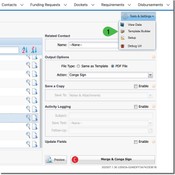
5. This will allow you to search for and find the merge fields for all of your data, including the data from the queries.
- Search for the field name from the filter and use the arrows to move the field to the right window.
- Then you can copy and paste or drag/drop it into your document

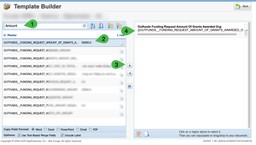
6. Open a copy of your word Doc template and enter the Merge fields where you previously had placeholders. For Example, your word document may now look like this:
Grant Agreement
This Grant Agreement is entered into between Paws for Change (“Grantor”) and {{OUTFUNDS_FUNDING_REQUEST_APPLYING_ORGANIZATION_NAME}} (“Grantee”) for Grant Number: “Funding_Request_Number”
1. Project Details The Grant shall be used for the following purpose(s):
Organization Name: {{OUTFUNDS_FUNDING_REQUEST_APPLYING_ORGANIZATION_NAME}}
Country: {{OUTFUNDS_FUNDING_REQUEST_Country}}
Total Grant Amount: {{OUTFUNDS_FUNDING_REQUEST_AMOUNT_OF_GRANTS_AWARDED}}
….
- Save and re-upload this new document to the Conga template record, deleting the old file.
Step 5: Test and Format
- Return to the funding request record and click “Generate Grant Agreement”
- Click “Merge and Conga Sign”
- Click “Preview and Tag”
- Review all fields and confirm the data is present.
At this point you may notice the dates and currency fields are not displaying the way you wish. You can add the following modifiers to the merge fields in your word document. Make sure you save and re-upload a new copy to the Conga template docx file and delete the old one.
Date: {{OUTFUNDS__DISBURSEMENT_SCHEDULED_DATE\@ “MM/dd/yyyy”}}
Currency: {{OUTFUNDS__DISBURSEMENT_AMOUNT\# Currency }}
Conclusion
And thats it! With your Conga Sign template configured, queries built, button on the page layout, you have everything you need to generate a Grant Agreement. Hopefully future me, and maybe some other wandering internet stranger, will be glad this was written down.